# 从零开始的 Flutter 动画
> For AI agents: the complete documentation index is at [llms.txt](https://coldstoneboy.cn/llms.txt). Markdown versions of any page are available by appending `.md` to the URL path.
Flutter 中的动画
## 前言
动画本质是在一段时间内不断改变屏幕上显示的内容,从而产生[视觉暂留](https://zh.wikipedia.org/wiki/%E8%A6%96%E8%A6%BA%E6%9A%AB%E7%95%99)现象。
动画一般可分为两类:
**补间动画**:补间动画是一种预先定义物体运动的起点和终点,物体的运动方式,运动时间,时间曲线,然后从起点过渡到终点的动画。
**基于物理的动画**:基于物理的动画是一种模拟现实世界运动的动画,通过建立运动模型来实现。例如一个篮球🏀从高处落下,需要根据其下落高度,重力加速度,地面反弹力等影响因素来建立运动模型。
## Flutter 中的动画
Flutter 中有多种类型的动画,先从一个简单的例子开始,使用一个 `AnimatedContainer` 控件,然后设置动画时长 `duration`,最后调用 `setState` 方法改变需要变化的属性值,一个动画就创建了。
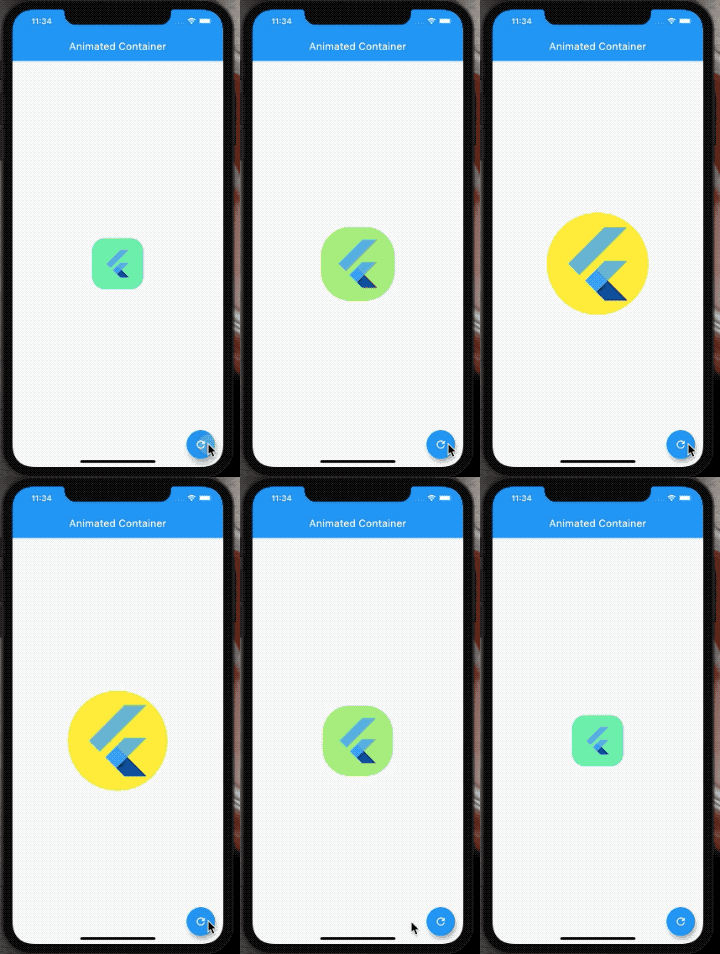 代码如下
```dart
import 'package:flutter/material.dart';
class AnimatedContainerPage extends StatefulWidget {
@override
_AnimatedContainerPageState createState() => _AnimatedContainerPageState();
}
class _AnimatedContainerPageState extends State {
// 初始的属性值
double size = 100;
double raidus = 25;
Color color = Colors.yellow;
void _animate() {
// 改变属性值
setState(() {
size = size == 100 ? 200 : 100;
raidus = raidus == 25 ? 100 : 25;
color = color == Colors.yellow ? Colors.greenAccent : Colors.yellow;
});
}
@override
Widget build(BuildContext context) {
return Scaffold(
appBar: AppBar(title: Text('Animated Container')),
body: Center(
child: Column(
mainAxisAlignment: MainAxisAlignment.center,
children: [
// 在 AnimatedContainer 上应用属性值
AnimatedContainer(
width: size,
height: size,
curve: Curves.easeIn,
padding: const EdgeInsets.all(20.0),
decoration: BoxDecoration(
color: color,
borderRadius: BorderRadius.circular(raidus),
),
duration: Duration(seconds: 1),
child: FlutterLogo(),
)
],
),
),
floatingActionButton: FloatingActionButton(
onPressed: _animate,
child: Icon(Icons.refresh),
),
);
}
}
```
这是一个隐式动画,除此之外还有显式动画,Hreo 动画,交织动画。
## 基础概念
Flutter 动画是建立在以下的概念之上。
`Animation`
Flutter 中的动画系统基于 `Animation` 对象, 它是一个抽象类,保存了当前动画的值和状态(开始、暂停、前进、倒退),但不记录屏幕上显示的内容。UI 元素通过读取 `Animation` 对象的值和监听状态变化运行 `build` 函数,然后渲染到屏幕上形成动画效果。
一个 `Animation` 对象在一段时间内会持续生成介于两个值之间的值,比较常见的类型是 `Animation`,除 `double` 类型之外还有 `Animation` 或者 `Animation` 等。
```dart
abstract class Animation extends Listenable implements ValueListenable {
/// ...
}
```
`AnimationController`
带有控制方法的 `Animation` 对象,用来控制动画的启动,暂停,结束,设定动画运行时间等。
```dart
class AnimationController extends Animation
with AnimationEagerListenerMixin, AnimationLocalListenersMixin, AnimationLocalStatusListenersMixin {
/// ...
}
AnimationController controller = AnimationController(
vsync: this,
duration: Duration(seconds: 10),
);
```
`Tween`
用来生成不同类型和范围的动画取值。
```dart
class Tween extends Animatable {
Tween({ this.begin, this.end });
/// ...
}
// double 类型
Tween tween = Tween(begin: -200, end: 200);
// color 类型
ColorTween colorTween = ColorTween(begin: Colors.blue, end: Colors.yellow);
// border radius 类型
BorderRadiusTween radiusTween = BorderRadiusTween(
begin: BorderRadius.circular(0.0),
end: BorderRadius.circular(150.0),
);
```
`Curve`
Flutter 动画的默认动画过程是匀速的,使用 `CurvedAnimation` 可以将时间曲线定义为非线性曲线。
```dart
class CurvedAnimation extends Animation with AnimationWithParentMixin {
/// ...
}
Animation animation = CurvedAnimation(parent: controller, curve: Curves.easeIn);
```
`Ticker`
`Ticker` 用来添加每次屏幕刷新的回调函数 `TickerCallback`,每次屏幕刷新都会调用。类似于 Web 里面的 `requestAnimationFrame` 方法。
```dart
class Ticker {
/// ...
}
Ticker ticker = Ticker(callback);
```
## 隐式动画
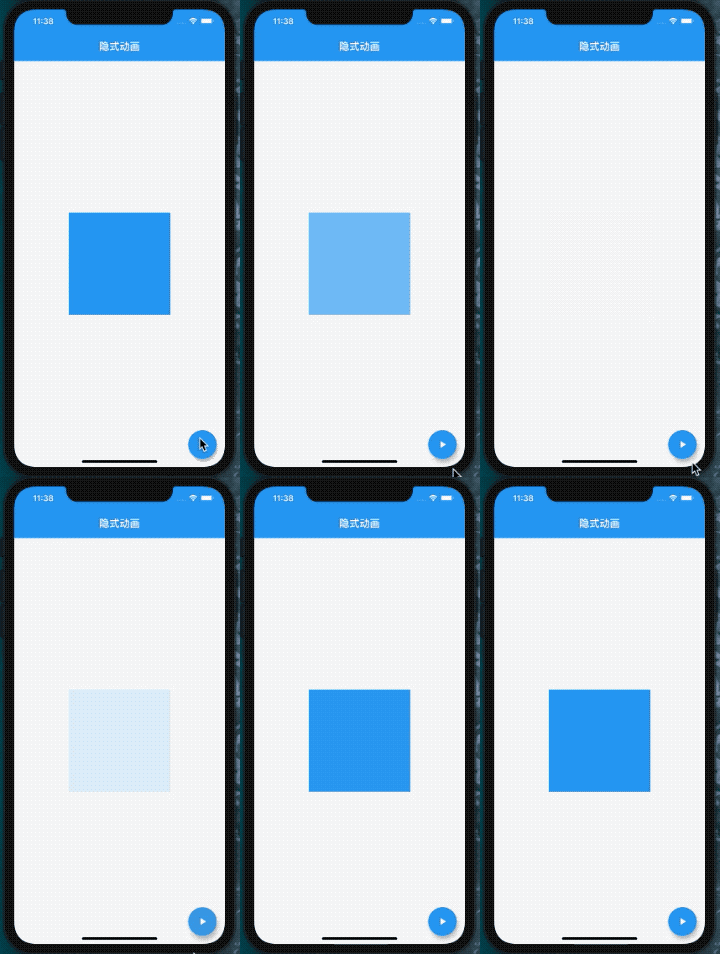
隐式动画使用 Flutter 框架内置的动画部件创建,通过设置动画的起始值和最终值来触发。当使用 `setState` 方法改变部件的动画属性值时,框架会自动计算出一个从旧值过渡到新值的动画。
比如 `AnimatedOpacity` 部件,改变它的 `opacity` 值就可以触发动画。
 ```dart
import 'package:flutter/material.dart';
class OpacityChangePage extends StatefulWidget {
@override
_OpacityChangePageState createState() => _OpacityChangePageState();
}
class _OpacityChangePageState extends State {
double _opacity = 1.0;
// 改变目标值
void _toggle() {
_opacity = _opacity > 0 ? 0.0 : 1.0;
setState(() {});
}
@override
Widget build(BuildContext context) {
return Scaffold(
appBar: AppBar(title: Text('隐式动画')),
body: Center(
child: AnimatedOpacity(
// 传入目标值
opacity: _opacity,
duration: Duration(seconds: 1),
child: Container(
width: 200,
height: 200,
color: Colors.blue,
),
),
),
floatingActionButton: FloatingActionButton(
onPressed: _toggle,
child: Icon(Icons.play_arrow),
),
);
}
}
```
除了 `AnimatedOpacity` 外,还有其他的内置隐式动画部件如:`AnimatedContainer`, `AnimatedPadding`, `AnimatedPositioned`, `AnimatedSwitcher`, `AnimatedAlign` 等。
## 显式动画
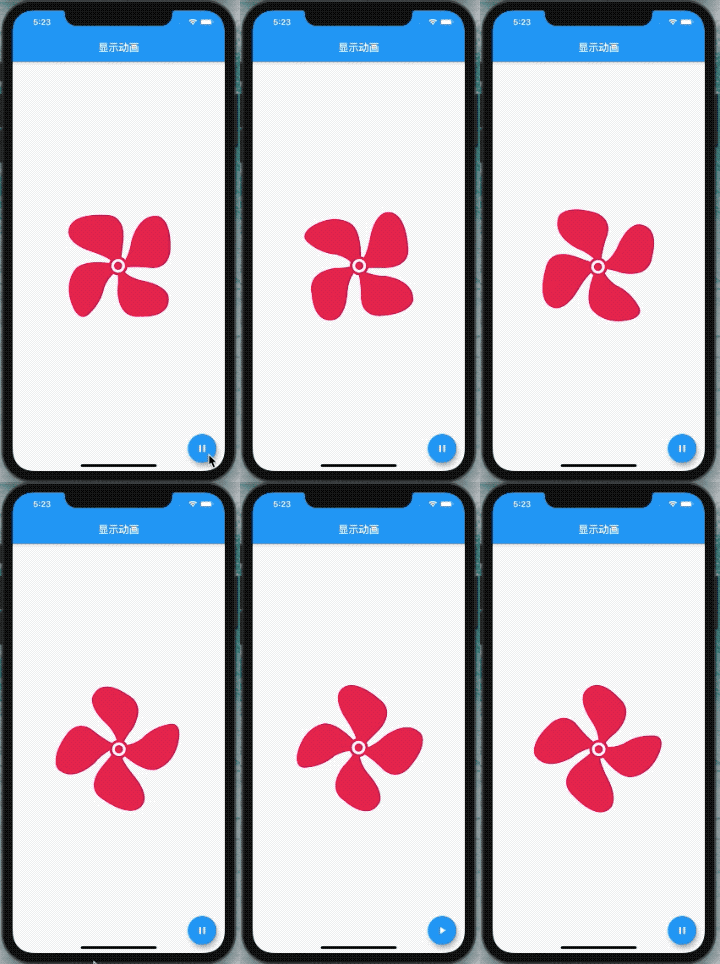
显式动画指的是需要手动设置动画的时间,运动曲线,取值范围的动画。将值传递给动画部件如: `RotationTransition`,最后使用一个`AnimationController` 控制动画的开始和结束。
 ```dart
import 'dart:math';
import 'package:flutter/material.dart';
class RotationAinmationPage extends StatefulWidget {
@override
_RotationAinmationPageState createState() => _RotationAinmationPageState();
}
class _RotationAinmationPageState extends State
with SingleTickerProviderStateMixin {
AnimationController _controller;
Animation _turns;
bool _playing = false;
// 控制动画运行状态
void _toggle() {
if (_playing) {
_playing = false;
_controller.stop();
} else {
_controller.forward()..whenComplete(() => _controller.reverse());
_playing = true;
}
setState(() {});
}
@override
void initState() {
super.initState();
// 初始化动画控制器,设置动画时间
_controller = AnimationController(
vsync: this,
duration: Duration(seconds: 10),
);
// 设置动画取值范围和时间曲线
_turns = Tween(begin: 0.0, end: pi * 2).animate(
CurvedAnimation(parent: _controller, curve: Curves.easeIn),
);
}
@override
void dispose() {
super.dispose();
_controller.dispose();
}
@override
Widget build(BuildContext context) {
return Scaffold(
appBar: AppBar(title: Text('显示动画')),
body: Center(
child: RotationTransition(
// 传入动画值
turns: _turns,
child: Container(
width: 200,
height: 200,
child: Image.asset(
'assets/images/fan.png',
fit: BoxFit.cover,
),
),
),
),
floatingActionButton: FloatingActionButton(
onPressed: _toggle,
child: Icon(_playing ? Icons.pause : Icons.play_arrow),
),
);
}
}
```
除了 `RotationTransition` 外,还有其他的显示动画部件如:`FadeTransition`, `ScaleTransition`, `SizeTransition`, `SlideTransition` 等。
## Hero 动画
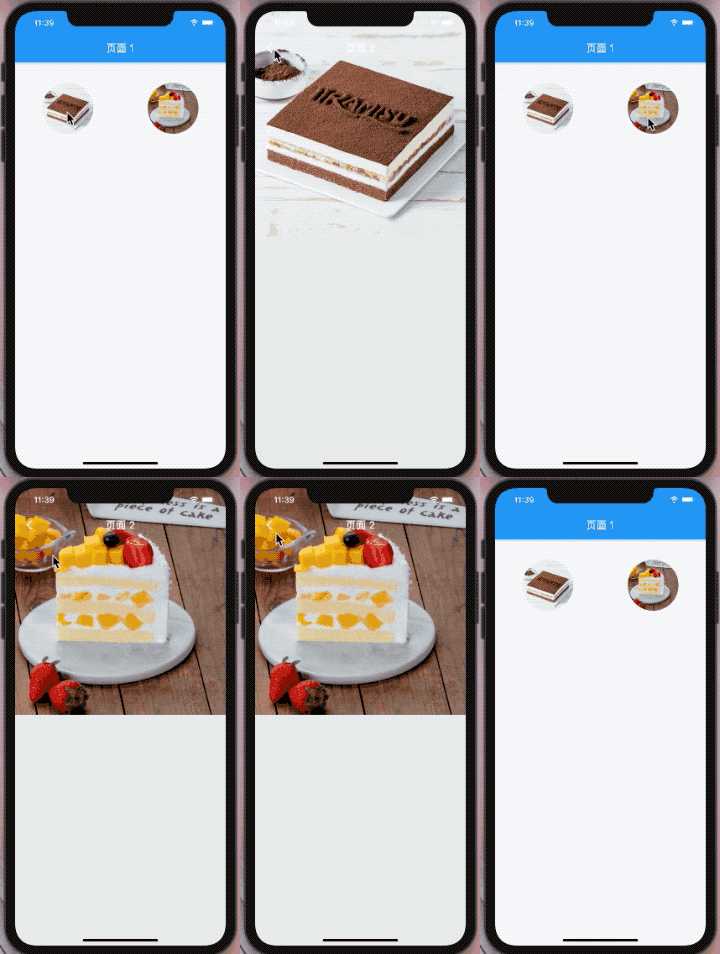
Hero 动画指的是在页面切换时一个元素从旧页面运动到新页面的动画。Hero 动画需要使用两个 `Hero` 控件实现:一个用来在旧页面中,另一个在新页面。两个 `Hero` 控件需要使用相同的 `tag` 属性,并且不能与其他`tag`重复。
 ```dart
// 页面 1
import 'package:flutter/material.dart';
import 'hero_animation_page2.dart';
String cake1 = 'assets/images/cake01.jpg';
String cake2 = 'assets/images/cake02.jpg';
class HeroAnimationPage1 extends StatelessWidget {
GestureDetector buildRowItem(context, String image) {
return GestureDetector(
onTap: () {
// 跳转到页面 2
Navigator.of(context).push(
MaterialPageRoute(builder: (ctx) {
return HeroAnimationPage2(image: image);
}),
);
},
child: Container(
width: 100,
height: 100,
child: Hero(
// 设置 Hero 的 tag 属性
tag: image,
child: ClipOval(child: Image.asset(image)),
),
),
);
}
@override
Widget build(BuildContext context) {
return Scaffold(
appBar: AppBar(title: Text('页面 1')),
body: Column(
children: [
SizedBox(height: 40.0),
Row(
mainAxisAlignment: MainAxisAlignment.spaceAround,
children: [
buildRowItem(context, cake1),
buildRowItem(context, cake2),
],
),
],
),
);
}
}
// 页面 2
import 'package:flutter/material.dart';
class HeroAnimationPage2 extends StatelessWidget {
final String image;
const HeroAnimationPage2({@required this.image});
@override
Widget build(BuildContext context) {
return Scaffold(
body: CustomScrollView(
slivers: [
SliverAppBar(
expandedHeight: 400.0,
title: Text('页面 2'),
backgroundColor: Colors.grey[200],
flexibleSpace: FlexibleSpaceBar(
collapseMode: CollapseMode.parallax,
background: Hero(
// 使用从页面 1 传入的 tag 值
tag: image,
child: Container(
decoration: BoxDecoration(
image: DecorationImage(
image: AssetImage(image),
fit: BoxFit.cover,
),
),
),
),
),
),
SliverList(
delegate: SliverChildListDelegate(
[
Container(height: 600.0, color: Colors.grey[200]),
],
),
),
],
),
);
}
}
```
## 交织动画
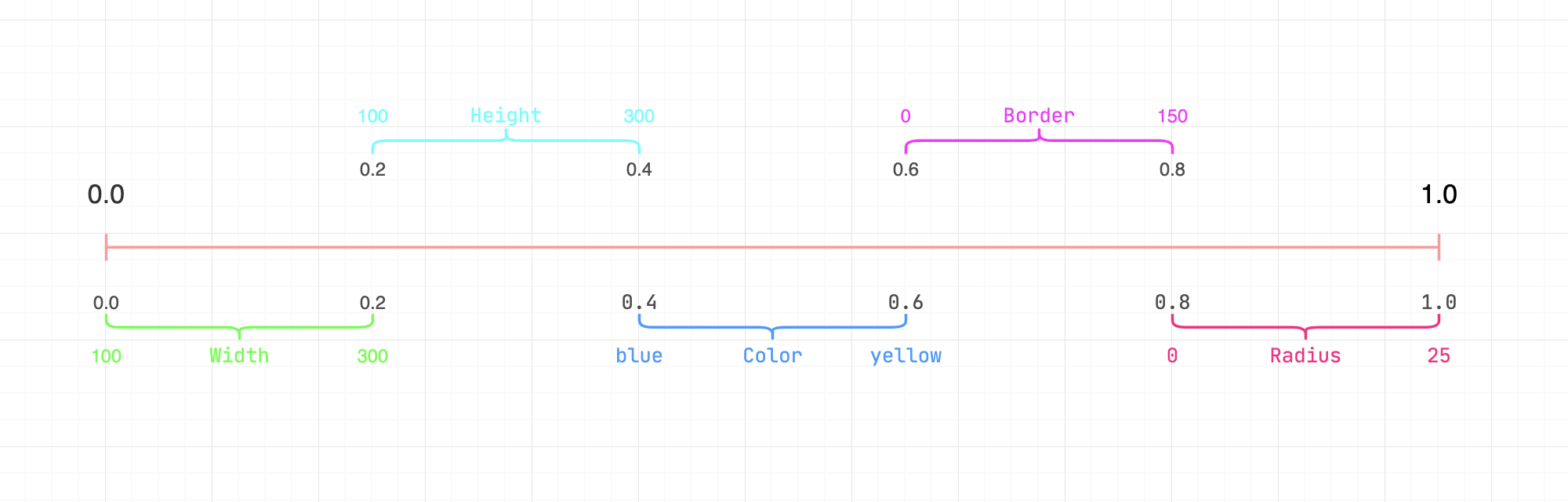
交织动画是由一系列的小动画组成的动画。每个小动画可以是连续或间断的,也可以相互重叠。其关键点在于使用 `Interval` 部件给每个小动画设置一个时间间隔,以及为每个动画的设置一个取值范围 `Tween`,最后使用一个 `AnimationController` 控制总体的动画状态。
`Interval` 继承至 `Curve` 类,通过设置属性 `begin` 和 `end` 来确定这个小动画的运行范围。
```dart
class Interval extends Curve {
/// ...
/// 动画起始点
final double begin;
/// 动画结束点
final double end;
/// 动画缓动曲线
final Curve curve;
/// ...
}
```
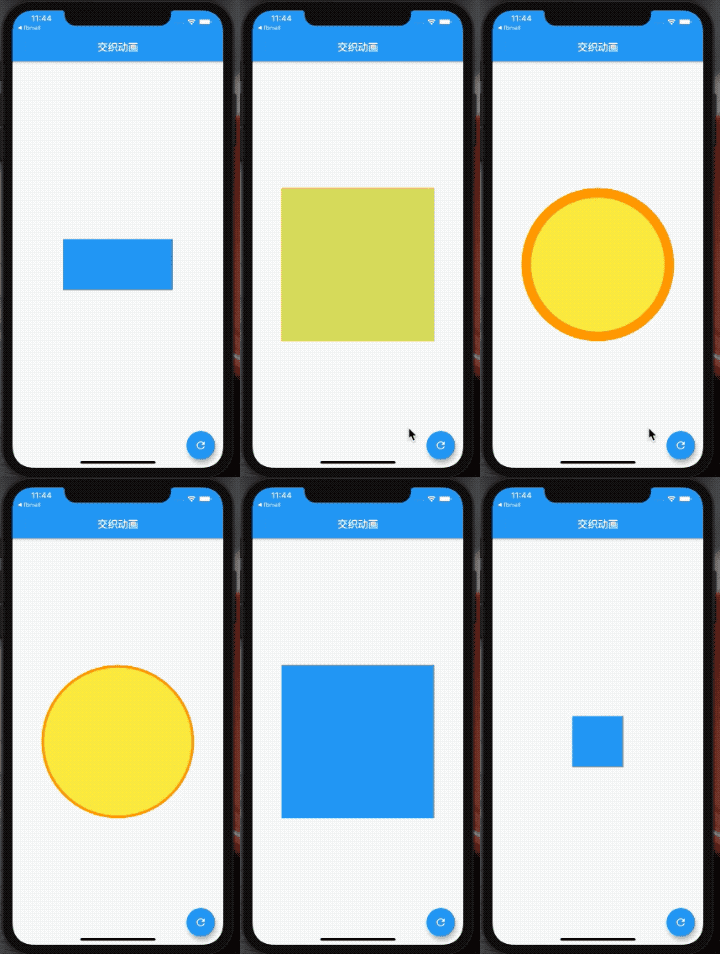 这是一个由 5 个小动画组成的交织动画,宽度,高度,颜色,圆角,边框,每个动画都有自己的动画区间。
```dart
import 'package:flutter/material.dart';
class StaggeredAnimationPage extends StatefulWidget {
@override
_StaggeredAnimationPageState createState() => _StaggeredAnimationPageState();
}
class _StaggeredAnimationPageState extends State
with SingleTickerProviderStateMixin {
AnimationController _controller;
Animation _width;
Animation _height;
Animation _color;
Animation _border;
Animation _borderRadius;
void _play() {
if (_controller.isCompleted) {
_controller.reverse();
} else {
_controller.forward();
}
}
@override
void initState() {
super.initState();
_controller = AnimationController(
vsync: this,
duration: Duration(seconds: 5),
);
_width = Tween(
begin: 100,
end: 300,
).animate(
CurvedAnimation(
parent: _controller,
curve: Interval(
0.0,
0.2,
curve: Curves.ease,
),
),
);
_height = Tween(
begin: 100,
end: 300,
).animate(
CurvedAnimation(
parent: _controller,
curve: Interval(
0.2,
0.4,
curve: Curves.ease,
),
),
);
_color = ColorTween(
begin: Colors.blue,
end: Colors.yellow,
).animate(
CurvedAnimation(
parent: _controller,
curve: Interval(
0.4,
0.6,
curve: Curves.ease,
),
),
);
_borderRadius = BorderRadiusTween(
begin: BorderRadius.circular(0.0),
end: BorderRadius.circular(150.0),
).animate(
CurvedAnimation(
parent: _controller,
curve: Interval(
0.6,
0.8,
curve: Curves.ease,
),
),
);
_border = Tween(
begin: 0,
end: 25,
).animate(
CurvedAnimation(
parent: _controller,
curve: Interval(0.8, 1.0),
),
);
}
@override
Widget build(BuildContext context) {
return Scaffold(
appBar: AppBar(title: Text('交织动画')),
body: Center(
child: AnimatedBuilder(
animation: _controller,
builder: (BuildContext context, Widget child) {
return Container(
width: _width.value,
height: _height.value,
decoration: BoxDecoration(
color: _color.value,
borderRadius: _borderRadius.value,
border: Border.all(
width: _border.value,
color: Colors.orange,
),
),
);
},
),
),
floatingActionButton: FloatingActionButton(
onPressed: _play,
child: Icon(Icons.refresh),
),
);
}
}
```
## 物理动画
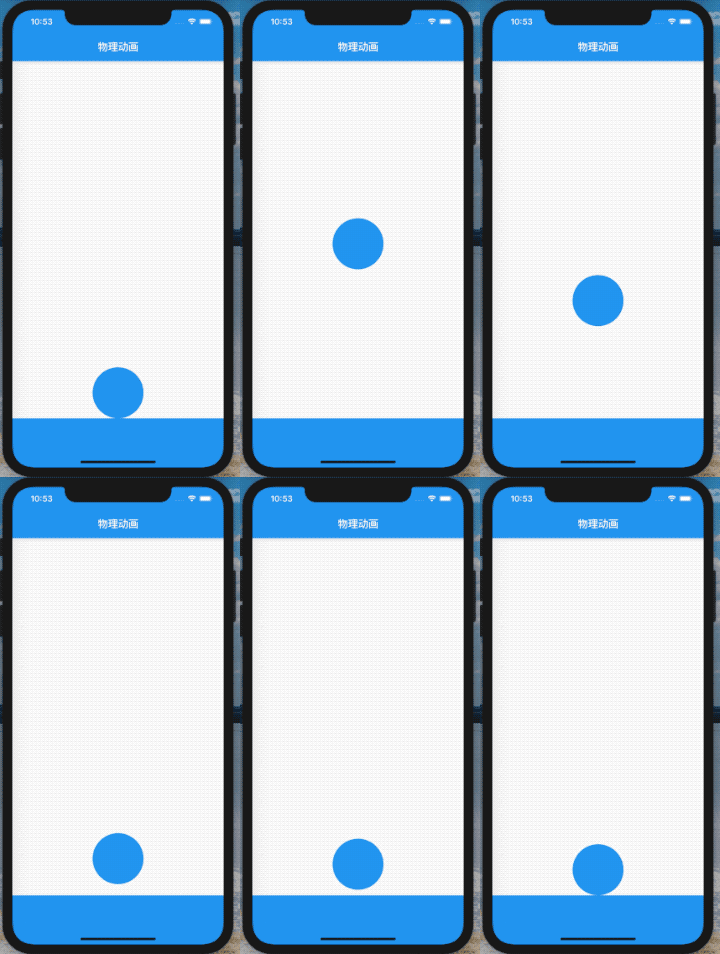
物理动画是一种模拟现实世界物体运动的动画。需要建立物体的运动模型,以一个物体下落为例,这个运动受到物体的下落高度,重力加速度,地面的反作用力等因素的影响。
 ```dart
import 'package:flutter/material.dart';
import 'package:flutter/scheduler.dart';
class ThrowAnimationPage extends StatefulWidget {
@override
_ThrowAnimationPageState createState() => _ThrowAnimationPageState();
}
class _ThrowAnimationPageState extends State {
// 球心高度
double y = 70.0;
// Y 轴速度
double vy = -10.0;
// 重力
double gravity = 0.1;
// 地面反弹力
double bounce = -0.5;
// 球的半径
double radius = 50.0;
// 地面高度
final double height = 700;
// 下落方法
void _fall(_) {
y += vy;
vy += gravity;
// 如果球体接触到地面,根据地面反弹力改变球体的 Y 轴速度
if (y + radius > height) {
y = height - radius;
vy *= bounce;
} else if (y - radius < 0) {
y = 0 + radius;
vy *= bounce;
}
setState(() {});
}
@override
void initState() {
super.initState();
// 使用一个 Ticker 在每次更新界面时运行球体下落方法
Ticker(_fall)..start();
}
@override
Widget build(BuildContext context) {
double screenWidth = MediaQuery.of(context).size.width;
return Scaffold(
appBar: AppBar(title: Text('物理动画')),
body: Column(
children: [
Container(
height: height,
child: Stack(
children: [
Positioned(
top: y - radius,
left: screenWidth / 2 - radius,
child: Container(
width: radius * 2,
height: radius * 2,
decoration: BoxDecoration(
color: Colors.blue,
shape: BoxShape.circle,
),
),
),
],
),
),
Expanded(child: Container(color: Colors.blue)),
],
),
);
}
}
```
## 总结
本文介绍了 Flutter 中多种类型的动画,分别是
- 隐式动画
- 显式动画
- Hero 动画
- 交织动画
- 基于物理的动画
一个动画的主要因素有
- `Animation` 动画对象
- `AnimationController` 动画控制器
- `Tween` 动画取值范围
- `Curve` 动画运动曲线
Flutter 动画基于类型化的 `Animation` 对象,`Widgets` 通过读取动画对象的当前值和监听状态变化重新运行 `build` 函数,不断变化 UI 形成动画效果。
## 参考
[Flutter animation basics with implicit animations](https://medium.com/flutter/flutter-animation-basics-with-implicit-animations-95db481c5916)
[Directional animations with built-in explicit animations](https://medium.com/flutter/directional-animations-with-built-in-explicit-animations-3e7c5e6fbbd7)
[动画效果介绍](https://flutter.cn/docs/development/ui/animations)
[Flutter动画简介](https://book.flutterchina.club/chapter9/intro.html)
[在 Flutter 应用里实现动画效果](https://flutter.cn/docs/development/ui/animations/tutorial)